
Tech Lab · Gaming mice
8K Polling Rate Mouse: Is 8000Hz Worth It?
An 8K mouse reports to your PC eight times as often as a 1,000 Hz mouse. Here is what that changes, what it costs, and who should turn it on.
By Alex · Panda Wagon · 6 min read

Quick answer
●For most players, no — going from 1,000 Hz to 8,000 Hz saves 0.875 ms at best, and two of the three reviews below doubt most people can feel it.
●It can help a narrow group — competitive players with a 240 Hz or faster monitor and a strong CPU.
●It has a real cost — wireless battery life often falls to around a fifth, and weaker CPUs can lose smoothness.
We have not run our own latency tests. The figures in this guide come from the reviewers and manufacturers linked in each section, and we say which is which.
In this guide
What an 8K Polling Rate Mouse Actually Does
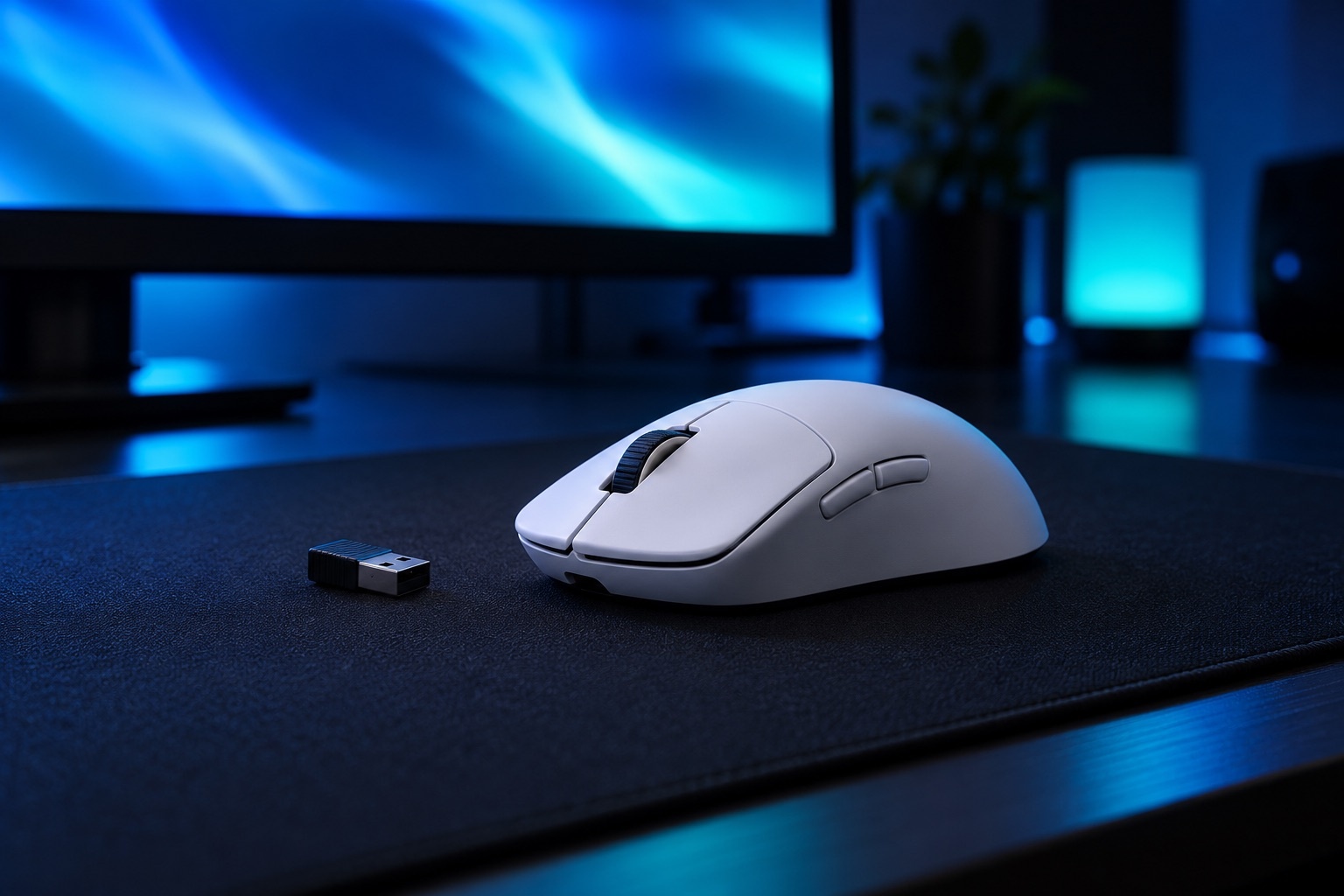
Polling rate is how often your mouse reports movement and clicks to your PC. A 1,000 Hz mouse reports once every millisecond. An 8,000 Hz mouse, usually sold as an 8K mouse, reports every 0.125 milliseconds.
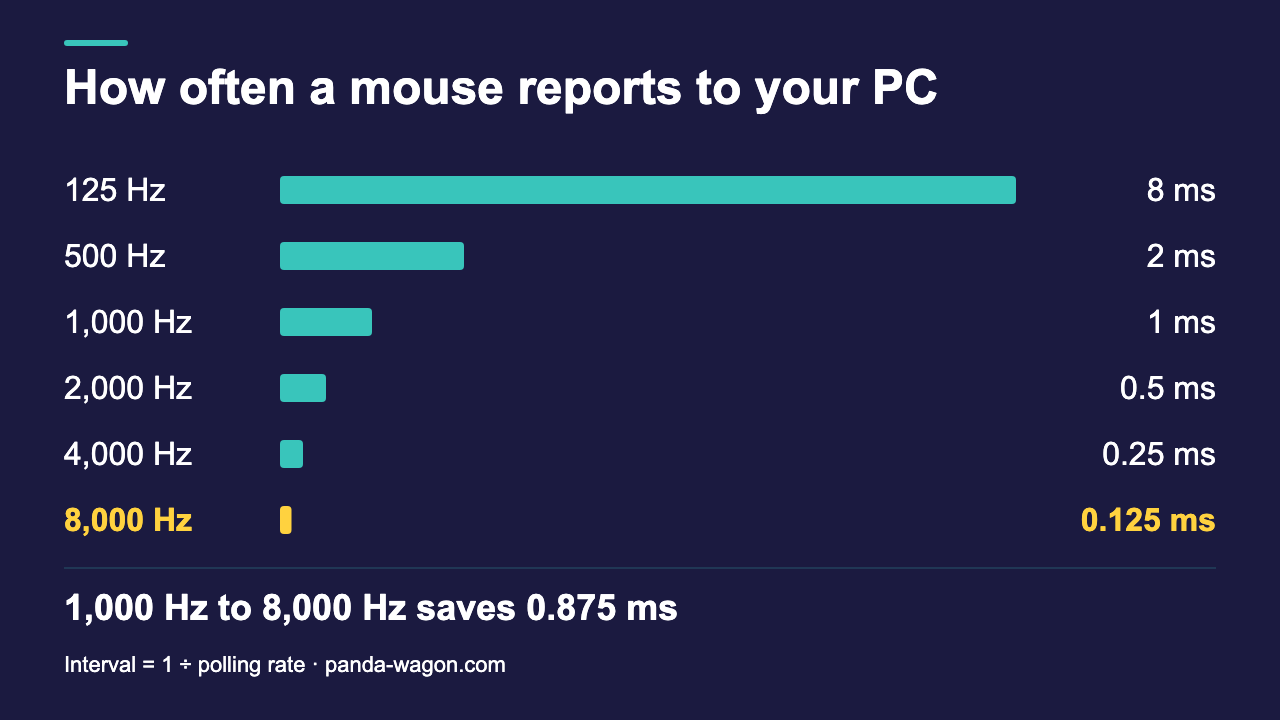
That chart explains most of the debate. Moving from 125 Hz to 1,000 Hz saves 7 ms. Moving from 1,000 Hz to 8,000 Hz saves 0.875 ms. Polling is also only one part of the delay between your click and the image on screen: ASUS lists switch type, CPU speed, frame rate and monitor processing as part of the same chain.
Is 8K Polling Rate Worth It? What Reviewers Say
Tom's Hardware
“Hint: You don't.”
Argues the returns shrink at this level and doubts the average player can notice a gap under a millisecond.
Sarah Jacobsson Purewal, Oct 2026 · Read the source
Igor's Lab
“more of a marketing feature than a practical advantage”
Measured mice in a click-to-photon test and says the gain sits at the limit of measurement tolerance. Few games benefit yet.
Karsten Rabeneck-Ketme, May 2025 · Read the source
ASUS Edge Up (sells 8K gear)
“poised to make a big impact”
Says this applies to esports players with a high-end PC and a fast monitor, and calls 8K more of a luxury for everyone else.
Edge Up, Feb 2026 · Read the source
Where they agree
All three warn that 8K adds CPU load and shortens wireless battery life. On monitors, Tom's Hardware names at least 240 Hz as the screen to have, and ASUS also points to 240 Hz and above.
Where they differ
ASUS says players with a fast setup will feel the difference, mainly as more consistent movement. Igor's Lab says the benefit can only be measured reliably under ideal conditions. Manufacturers do publish strong numbers: Razer reports 0.090 ms for its wired 8,000 Hz mice against 0.549 ms for the best rival wired mouse at 1,000 Hz. That is Razer's own controlled test, so read it as a best case.
What 8K Polling Costs You
Battery life
This is the clearest trade-off for wireless mice. Tom's Hardware lists these figures:
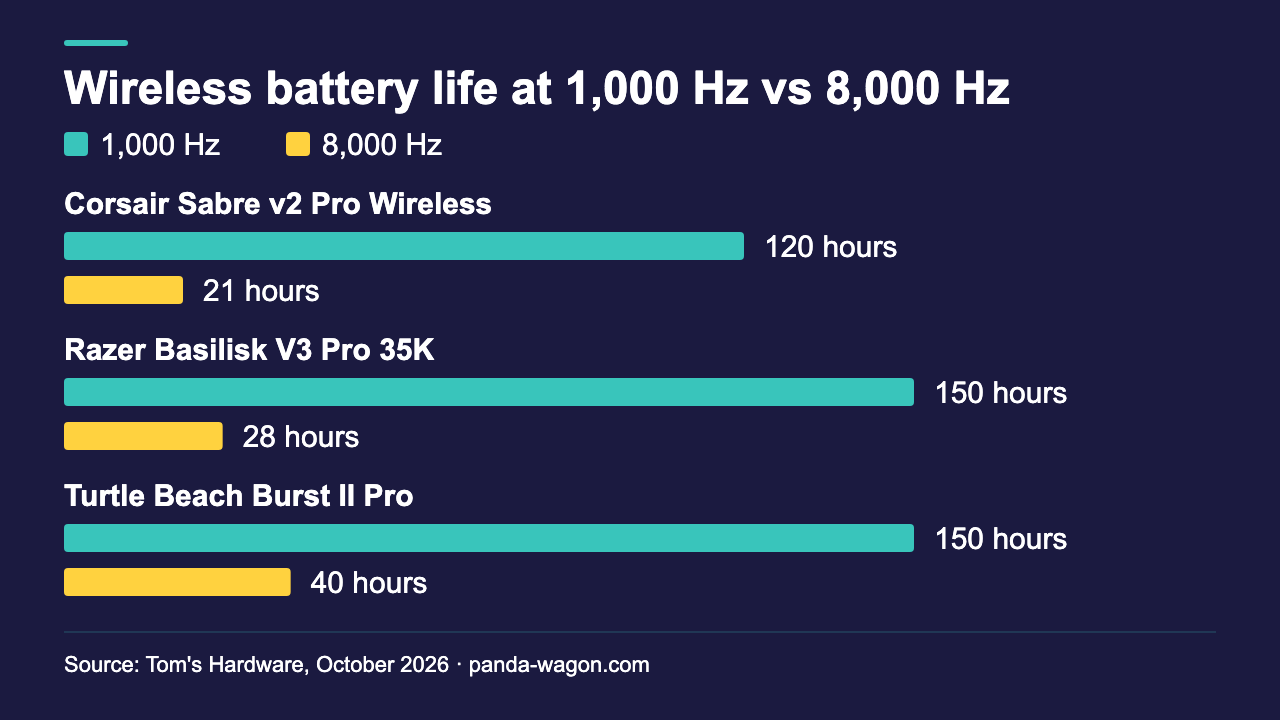
Collab mice follow the same pattern. The MelGeek Horus listing gives up to 215 hours at 125 Hz and about 22 hours at 8,000 Hz over wireless.
CPU load and smoothness
Each report is work for your processor. ASUS says the demand is negligible on high-end systems, while older or mid-range CPUs can see frame rates fluctuate. Tom's Hardware adds that any performance hit can cancel out the latency you hoped to save.
A fussier wireless setup
Wireless 8K usually needs a dedicated dongle. Razer advises keeping its dongle within 30 cm with a clear line of sight, away from active USB 3 hubs, and using a native USB port for wired mice. If you get lag or stutter, it suggests dropping to 4,000 Hz or 2,000 Hz.
Who Should Turn 8K On
Try 8,000 Hz
Competitive player, fast setup
You play shooters seriously, use a 240 Hz or faster monitor and have a strong CPU.
Try 2,000 to 4,000 Hz
Fast setup, mid-range CPU
You want some of the benefit with less CPU load and better battery life.
Stay at 1,000 Hz
Everyone else
You use a 144 Hz or slower monitor, play story games, or care more about battery life.
You can also try it yourself. Most 8K mice let you change the rate in their software, so an 8K mouse does not lock you in.
Start at 1,000 Hz
Play a game you know well and note how it feels.
Step up one level
Move to 2,000 Hz, then 4,000 Hz, then 8,000 Hz.
Watch for stutter
If frame rate or cursor movement gets worse, step back down.
Keep the lowest good setting
If you cannot feel a gain, the lower rate saves battery.
Collab Mice With 8K Support
If you are buying a collab mouse anyway, 8K support is a useful extra. Check how each one reaches 8,000 Hz, because the extras differ.
8K-capable mice at Panda Wagon
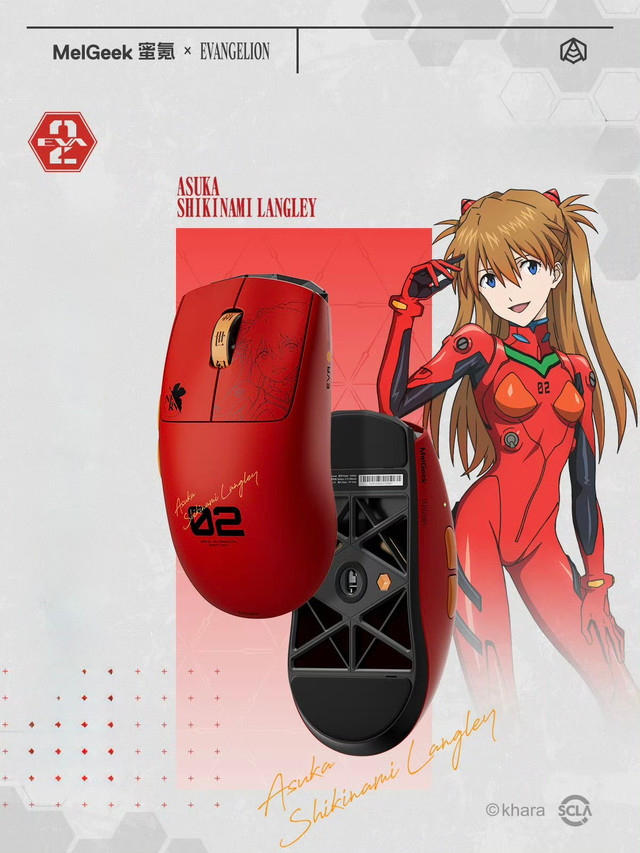
- MelGeek Horus EVA-02: up to 8,000 Hz wired and over 2.4 GHz wireless.
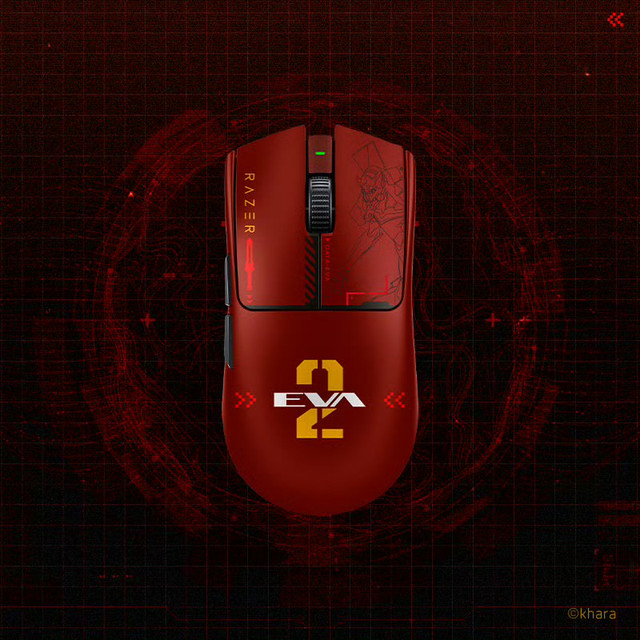
- Razer Viper V3 Pro EVA-02: 54 g, reaches 8,000 Hz with its entry-plug-style HyperPolling dongle.
- Pulsar X2 CL Pikachu: 1,000 Hz as standard, up to 8,000 Hz with the included 8K dongle.
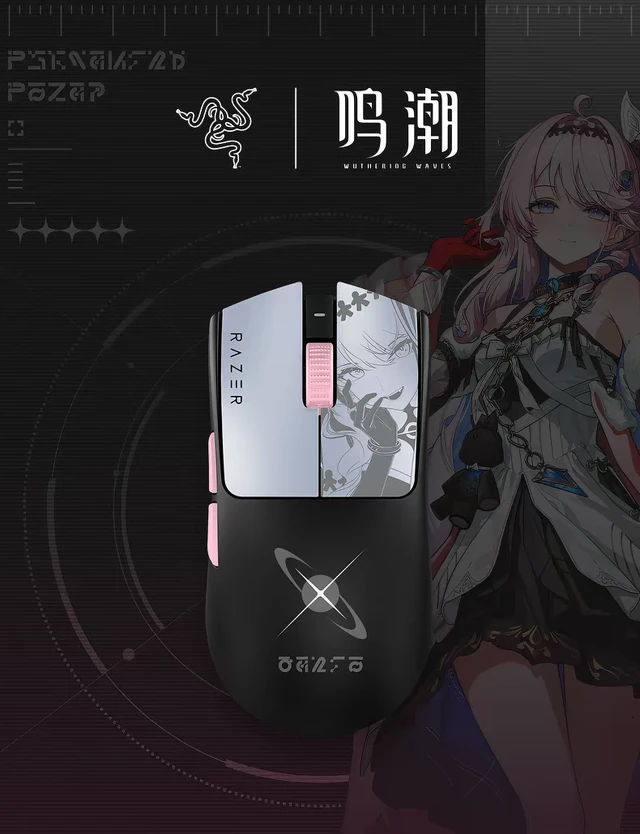
- Razer Denia Viper V3 Pro SE: 1,000 Hz over HyperSpeed Wireless. The 8,000 Hz dongle is sold separately.
See more in computer accessories or the Evangelion collection.
FAQ
QIs 8000Hz polling rate good?
It is the fastest common setting, but faster is not always better for you. It suits a fast monitor and a strong CPU. On other setups you pay in battery life and CPU load for a gain you may not notice.
QDoes polling rate matter for a mouse?
Yes, up to a point. Going from 125 Hz to 1,000 Hz is a clear improvement. Above 1,000 Hz, the time saved is less than a millisecond.
QWhat is the difference between 1000Hz and 8000Hz?
A 1,000 Hz mouse reports every 1 ms and an 8,000 Hz mouse every 0.125 ms. That is a best-case saving of 0.875 ms on the reporting step alone.
QWill an 8K mouse lower my FPS?
On a modern gaming PC, ASUS says you should not notice a dip. On an older CPU you may see a slight drop or micro-stutter. If so, lower the polling rate.
QDo I need a 240 Hz monitor for 8K polling?
It will work on any monitor, but Tom's Hardware and ASUS both say the benefit is mainly on 240 Hz or faster screens.
Sources
- Tom's Hardware: Do you need a mouse with an 8K polling rate?
- Igor's Lab: Latency measurements on gaming mice
- ASUS Edge Up: 1K vs. 8K polling rate
- Razer: HyperPolling technology
Keep exploring
Build a setup that can use a fast mouse
Shop computer accessoriesRead the PC build guidesWritten by Alex at Panda Wagon